Introduction to AI Video Analysis Feature: Analyzing Track and Field Movements with AI
Updated July 15, 2026
By the traqqer Editorial Team
AI Video Analysis is a feature that allows you to upload videos and receive advice from an AI coach.
What You Can Do with AI Video Analysis
traqqer turns a smartphone training clip into a structured review with an overall evaluation, strengths, areas to improve, and suggested drills. For the most useful result, keep the athlete clearly visible and enter one focused question, such as “Am I becoming upright too early during acceleration?”
Basic Analysis Operations
Let’s explain the basic operations of AI Video Analysis. You can check the analysis results in the following 4 steps:
- Enter the AI Video Analysis screen
- Upload a video and start analysis
- Wait for completion
- Check the results after completion
First, open the video analysis list screen from 🤖AI Video Analysis on the home screen. Then press the Analyze New Video button. Pressing the button will open the video analysis start screen.
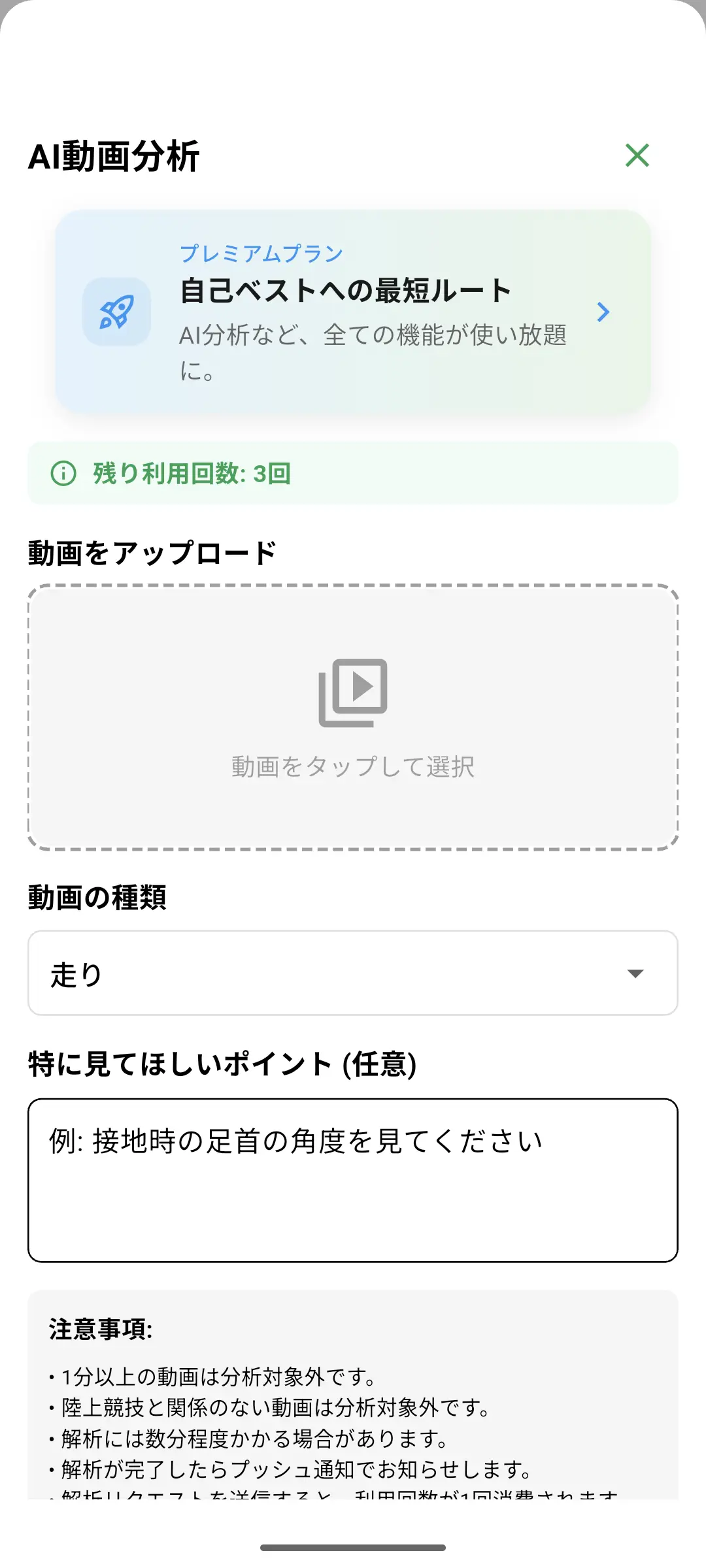
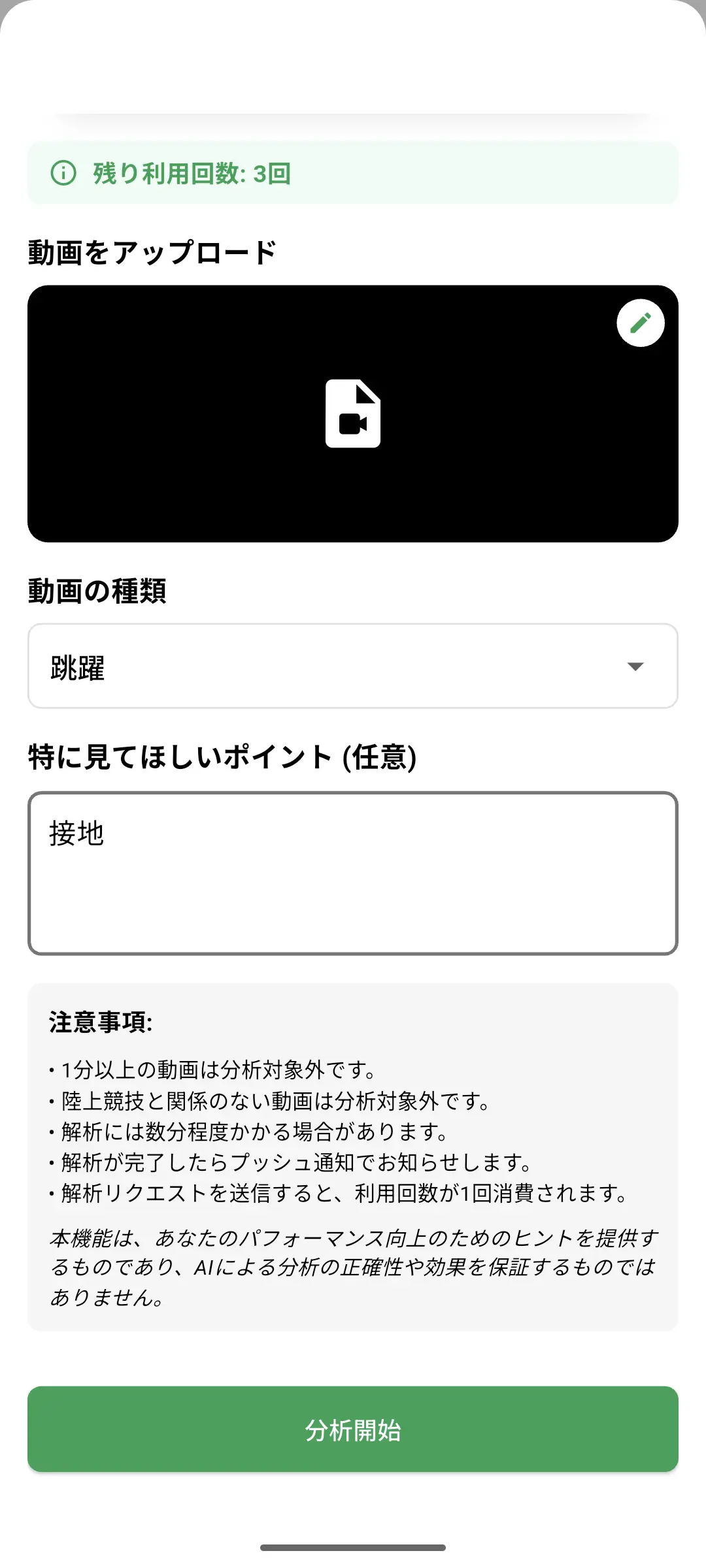
Upload a video and describe “Points you’d like to focus on”. “Points you’d like to focus on” can be left empty. Just press the Start Analysis button.
Once analysis starts, you’ll return to the analysis results list screen. Wait here until processing is complete (try reloading occasionally).
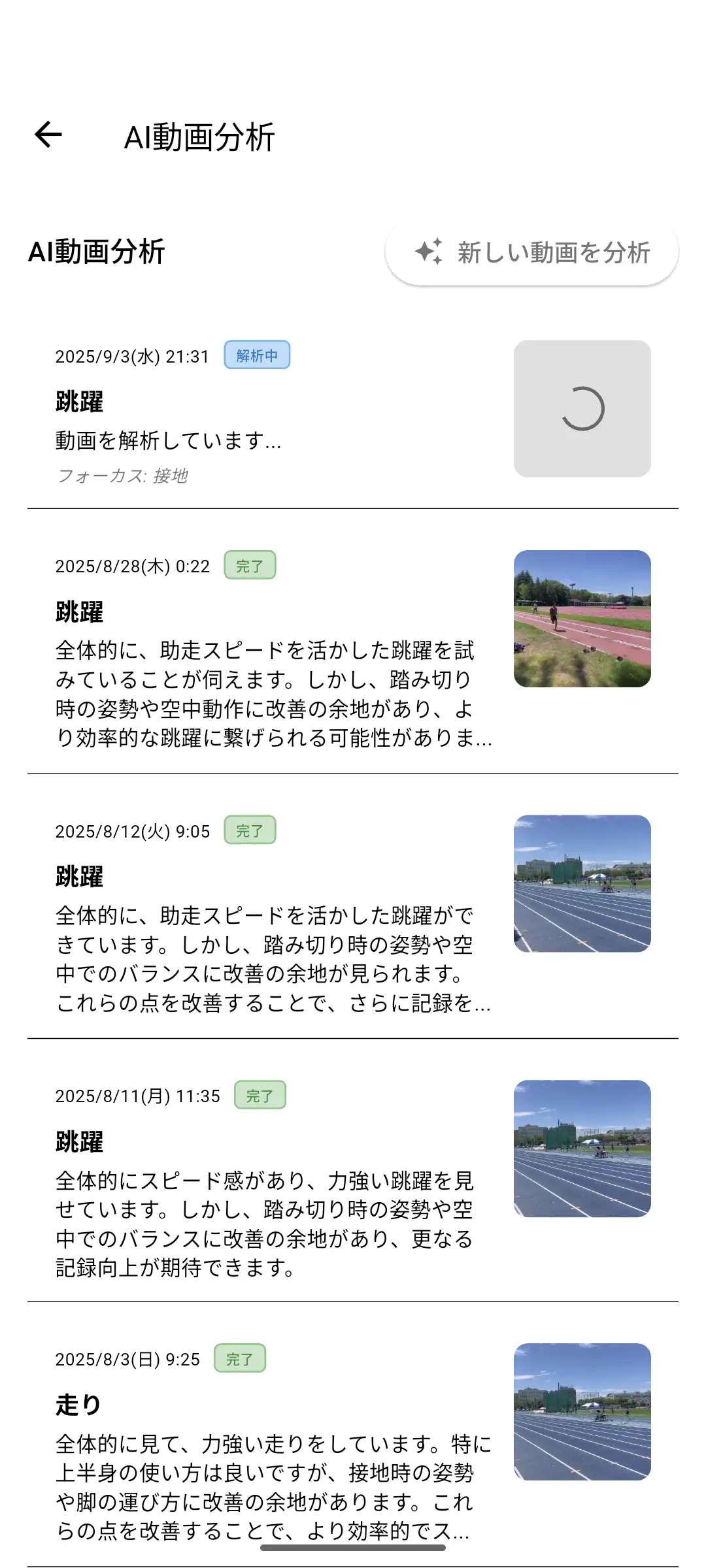
When processing is complete, the status will change to “Complete”. Once complete, you can tap to view the analysis results.
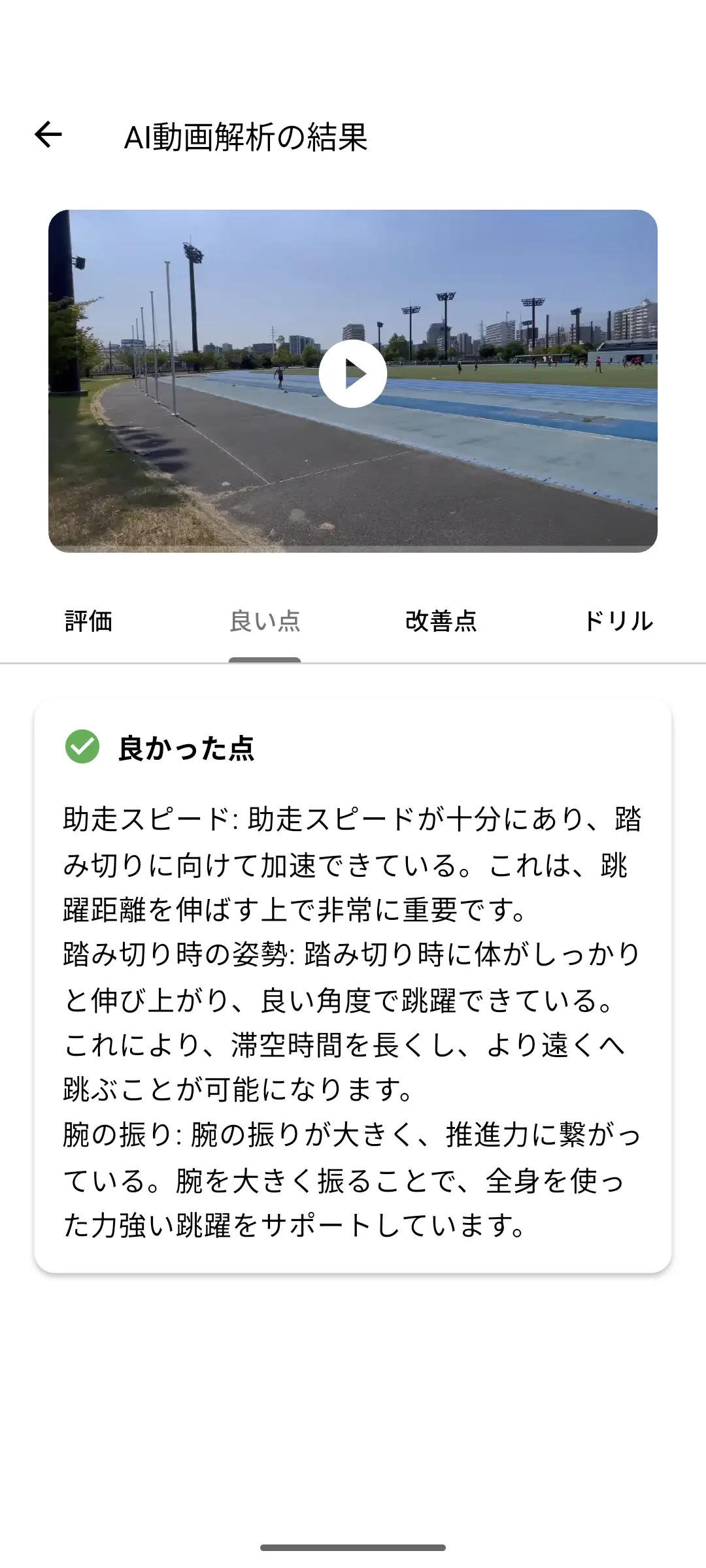
On this screen, you can view the following content:
- Evaluation
- Provides a comprehensive evaluation in text form
- Strengths
- Picks out and explains your strong points
- Areas for Improvement
- Shows you what needs to be improved
- Drills
- Suggests drills you should perform for improvement
*Email registration is required to use the AI Video Analysis feature
Videos Suitable for Analysis
Depending on the video content, analysis may not work well even if the athlete is visible in the video. Let’s explain what kind of videos are suitable for analysis using good and bad examples.
✅ Good Examples
- Subject is positioned sufficiently close
- Few people in the scene
- Subject is kept centered in frame
❌ Bad Examples
- Subject is too far away
- Too many people around
- Video is blurry
Summary
Using AI Video Analysis makes it easier to understand your current status and identify future challenges.
If you’re interested, download traqqer and try the AI Video Analysis feature. For a complete workflow, read the practical guide to AI running-form analysis and the sprint-form analysis checklist.
Frequently Asked Questions
What video should I upload?
Use a stable clip with the whole athlete visible, good lighting, and as few background people as possible. Record from the same angle when you want to compare two sessions.
What should I write in “Points you’d like to focus on”?
Ask about one visible phase or problem. A specific question about the start, acceleration, takeoff, landing, or late-race form gives the analysis a clearer target.
Is AI Video Analysis a medical assessment?
No. It provides training feedback from visible movement and cannot diagnose an injury. Seek an appropriate healthcare professional for pain or persistent symptoms.
Try traqqer at your next practice
traqqer is a training log for track and field athletes.
Log practice in a few taps and get AI feedback on your form videos. Free to start.
