AI video analysis / Throws
Go through your throw frame by frame. Get coaching notes on the same clip.
From the start of the movement to the release, a throw is over in a second or two. Film it, upload the clip, and traqqer returns a written review with one thing to fix and drills for your next session. It covers shot put, discus, javelin and hammer.
- Under 1 minute
- Whole body in frame
- Film from a safe spot
- iOS and Android
- Free to try

traqqer does not measure how far you threw. It does not track the shot, discus, javelin or hammer, so it does not give release speed or release angle. It reads body positions: joint angles on the frame you stop at, and a written review of the movement. Treat the review as a hint for training. It is not a diagnosis or a promise of a longer throw.
This is the kind of review you get
What comes back for one throw
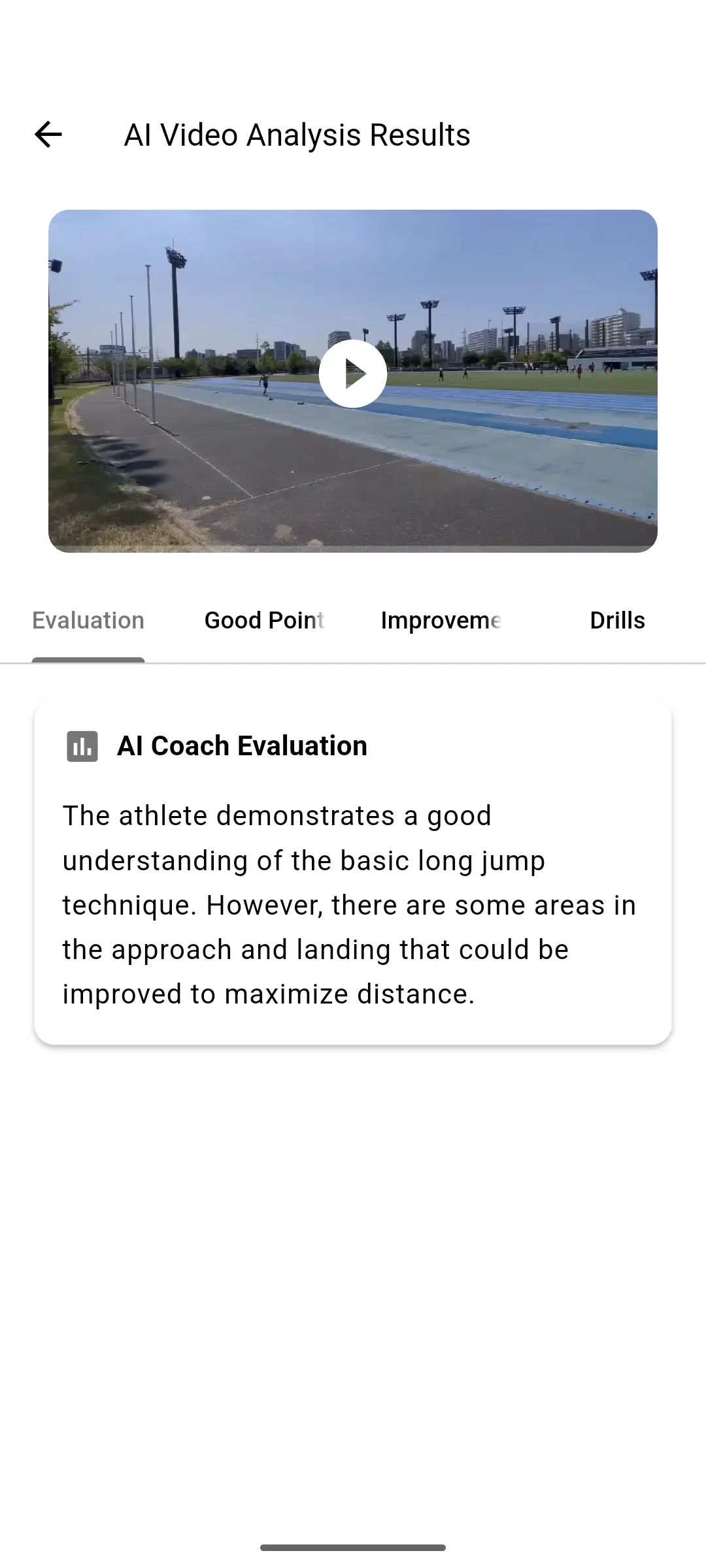
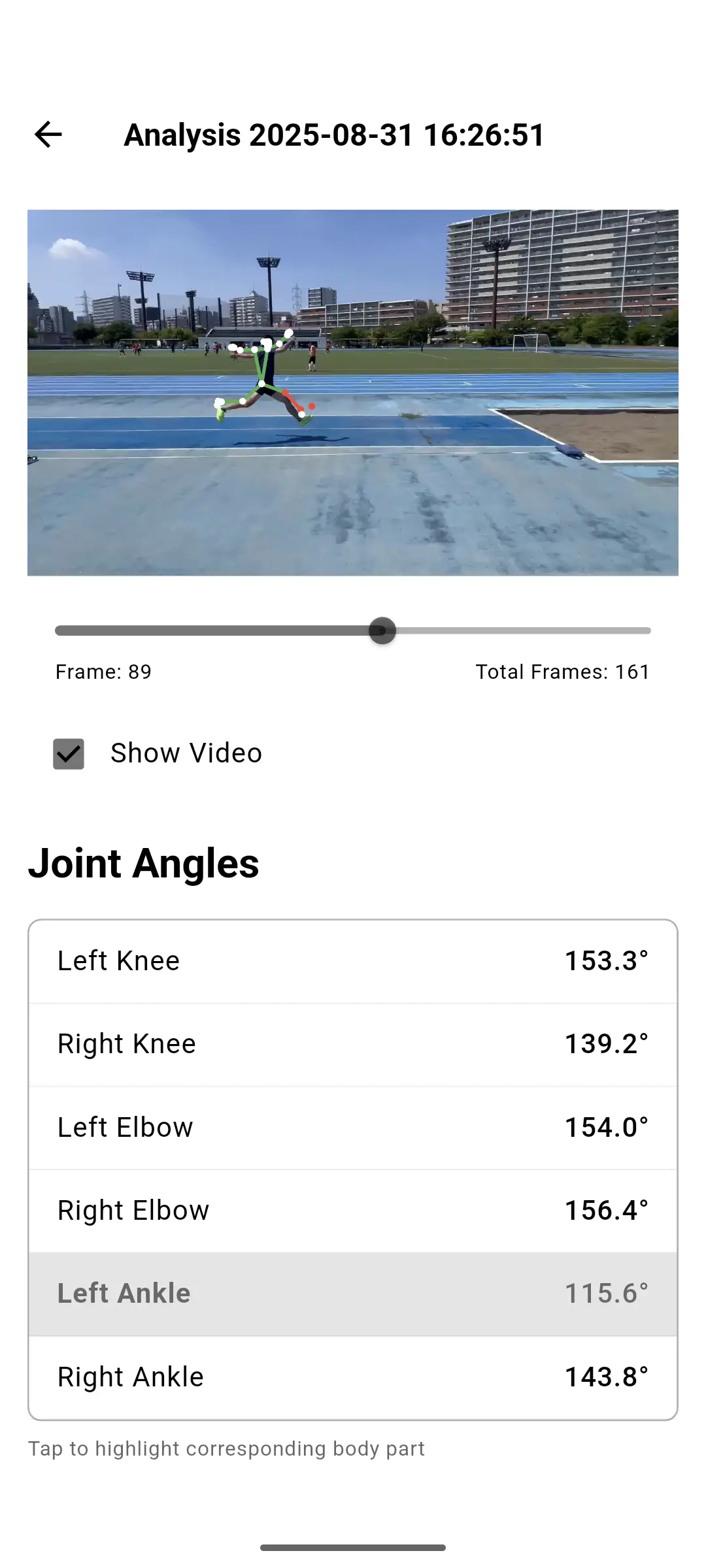
A shot put clip might come back with a note on how you set up at the back of the circle, where your hips and shoulders are in the power position, and whether the front leg holds firm at release. The Improvements tab says what to change. The Drills tab lists practice for that point. In the 3D view you can stop on the release frame and read the elbow and knee angles.
This is an example. The wording and the angles depend on your clip.
Each review has four tabs
Evaluation
A short written summary of the whole throw, from the start of the movement to the release.
Good Points
What to keep. Useful when you change one thing and do not want to lose another.
Improvements
What to fix next, such as the position of the hips at the power position or the block at release.
Drills
Practice matched to the improvements, for your next session.
The two screens you will use
The written review tells you where to look. The skeleton view lets you check that moment in numbers.
Questions
Does traqqer measure my throw distance or release speed?
Which throws does it cover?
How should I film a throw?
Does it work for rotational throws?
Is there an Android version?
Is it free?
Other event pages
The analysis works the same way on every page. What you look for changes with the event.
- Jumps: Long jump, triple jump, high jump, pole vault
- Throws (this page)
Film one throw today
A throw is too fast to see live. Record it once and look at it frame by frame.